Haori Unlock Guide — The Three DLC Haori and How to Wear Them
Published 2026-09-12Updated 2026-09-184 min read
Unlock the Gyokai, Hakuzuki and Unryu haori: edition requirements, the save-mirror redemption steps, and the outfit trick that stops the haori slot staying greyed out.
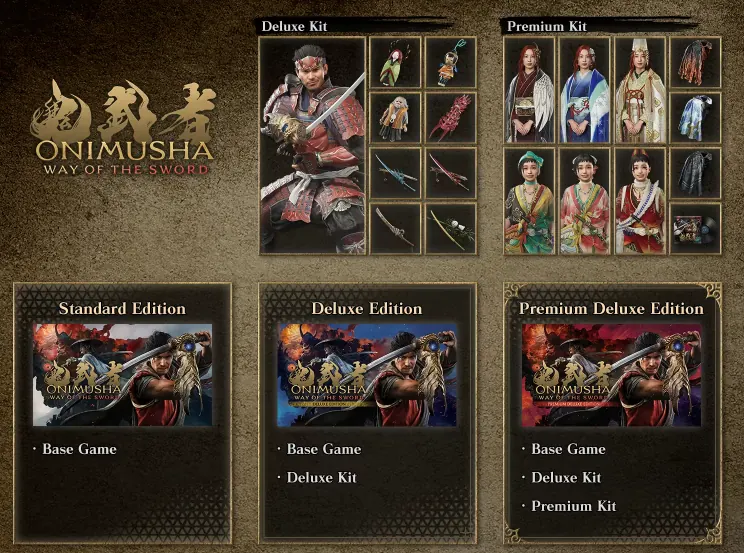
Three haori — Gyokai (Hellfire), Hakuzuki (White Moon) and Unryu (Cloud Dragon) — ship as costume DLC, and getting them onto Musashi involves three separate gates: owning the right edition, unlocking the menu, and claiming the items at a mirror. Missing any one of the three and the haori simply never appears.
1. Edition Check First
The three haori come with the Deluxe Edition or Premium Deluxe Edition only. The Standard Edition includes none of them — if you own the base game, they're part of the Deluxe upgrade pack, sold separately.
2. Unlock the Change-Appearance Menu
You can't change clothes on day one. Early save mirrors only offer saving and storage. The Change Appearance option appears at save mirrors only after you finish the Kiyomizu-dera main mission "The Stage is Set at Kiyomizu." Clear it, come back to any mirror, and the menu unlocks.
3. Claim the DLC at a Mirror
Even with the Deluxe Edition installed, the haori don't auto-pop into your wardrobe:
- Make sure the Deluxe bonus pack is actually installed — on Steam, check the DLC box in your library and restart the game.
- Interact with a save mirror → Check Add-On Content.
- Redeem all the edition cosmetic rewards. Only now do the haori enter your wardrobe.
Wearing One
One trap lives inside the appearance menu itself: if Musashi is wearing a full-body outfit, the haori slot is locked — full skins occupy the outerwear layer. Switch the outfit back to Musashi's default base clothing, then open the haori list and pick Gyokai, Hakuzui or Unryu.
Haori not selectable even after all that? Walk through the haori troubleshooting checklist — it covers the four most common causes in order.